CMB Delivery Services
CMB Delivery Services – where a smooth and easy-to-use app meets a strong and dependable system, carefully designed to optimize and simplify the delivery process. Our user-friendly system helps administrators with efficient delivery management capabilities, allowing them to add deliveries by specifying items and destinations. After registration, designated drivers can log into their accounts to view their assigned deliveries and their respective statuses.
Behind the scenes, our authorized staff gain access to the backend database. This administrative control ensures efficient management of customer orders. From adjusting delivery addresses to completely removing orders, the process is made smooth and easy with just a simple click. For drivers, a dedicated interface provides a quick overview of deliveries that are in progress, assigned, and already completed. Each delivery is associated with a unique ID, ensuring precision and organization throughout the process.
At the core of CMB Delivery Services, our dedication to ensuring seamless operations and customer satisfaction takes top priority, driving every aspect of our service. This assignment was created as a submission for the 1st Year 2nd Semester OOP Programming in C# group project.
Splash Screen
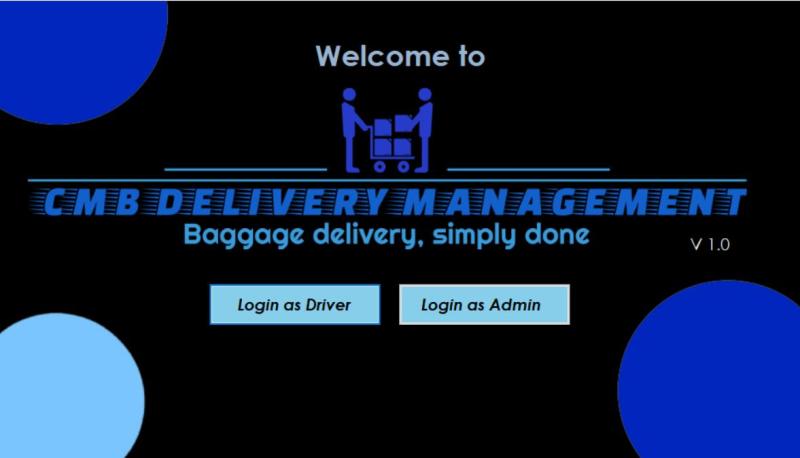
When the application is launched, a splash screen appears, displaying two buttons: “Login as Admin” and “Login as Driver”. Each button directs users to their separate login interfaces designed for administrators and drivers.
Dashboard
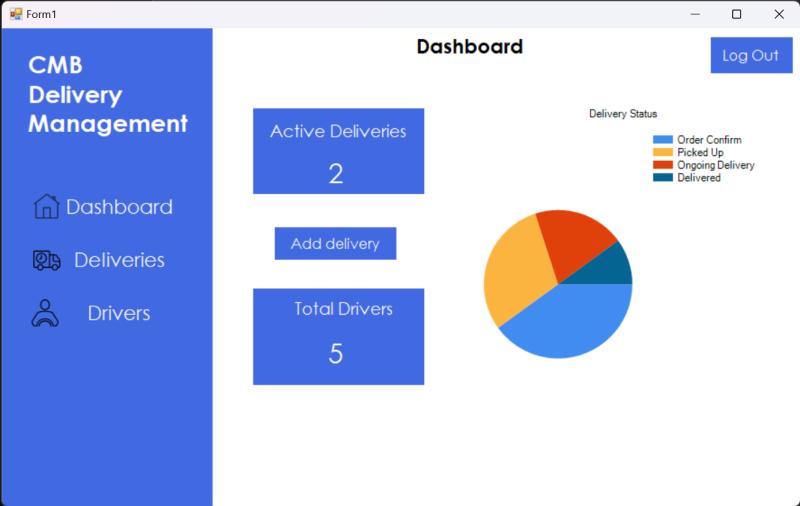
The administrator has the capability to monitor ongoing deliveries and add new ones. Similarly, they can also observe the number of existing drivers as needed. Delivery statuses of all active deliveries are also shown within a readily updated pie chart where data is fetched from the database. Furthermore, a logout feature is also accessible.
Login as Admin
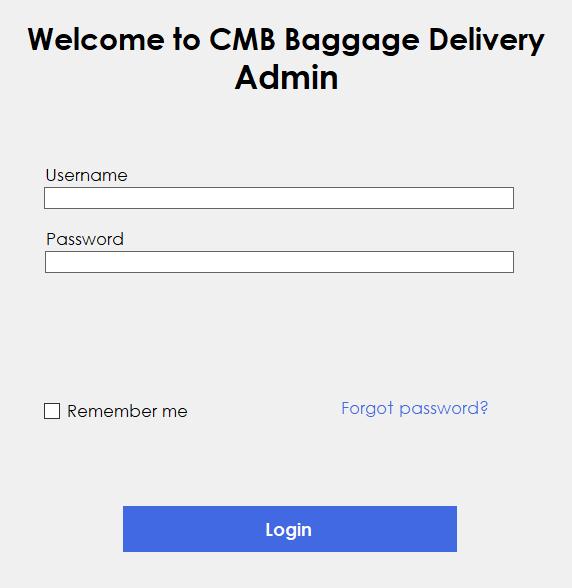
This login page presents an interface for admins to enter their username and password, with a login button that allows them to proceed to the dashboard. When the “X” button is clicked the Splash Screen will load up.
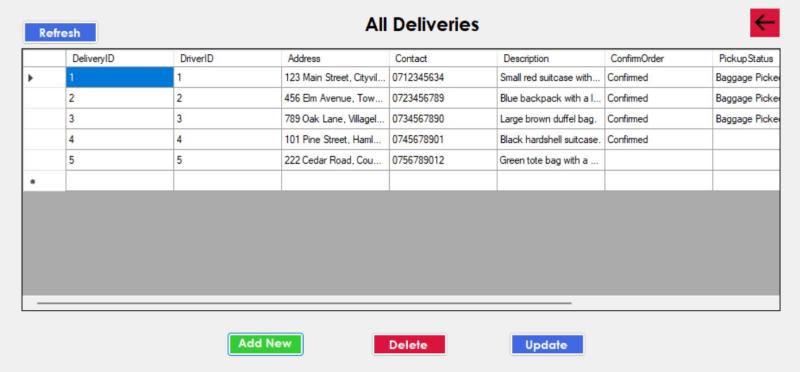
All Deliveries
This page shows all the ongoing deliveries currently associated with all the drivers. Admins can update each delivery and track all deliveries in real time. When the “Add New” button is clicked the user is directed to the Add Delivery interface. The “Delete” button lets you delete an already added delivery. The “Update” button directs the user to the edit Delivery page where they can change different attributes of an ongoing delivery.
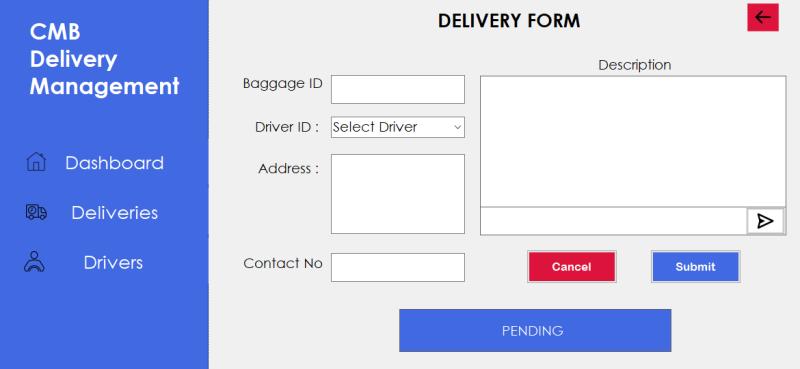
Add Delivery Form
Upon submitting a delivery form, the admin enters information such as Baggage ID, Driver ID, Address of delivery, Contact number and a description of the item. Once completed the form can then be submitted which will then be posted onto the system database. Similarly, the “Cancel” button will clear the existing data entered the form.There will be a “Delete” button as well as an “Update” button.A label will alert the user if the submission was successful or pending.
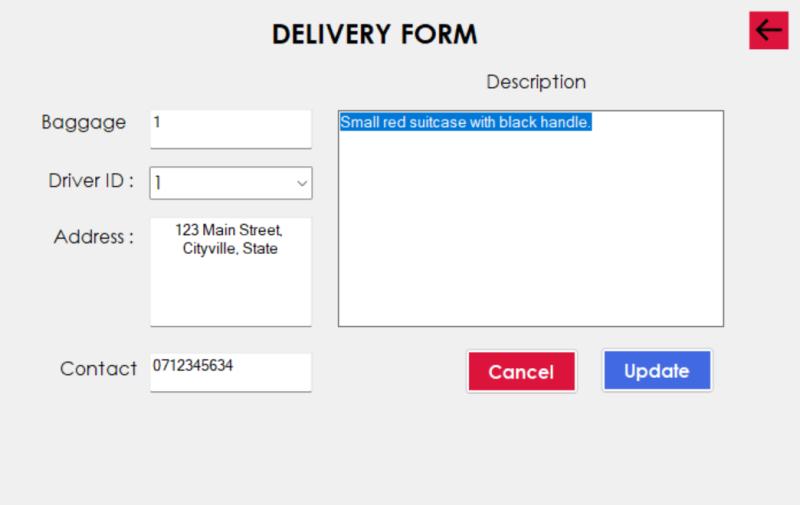
Update Delivery Form
When an admin selects a row, the Delivery ID is used to identify the specific delivery inside the database and then open that data in this form. Admins can change this data as they wish and press update to send those changes back to the database.
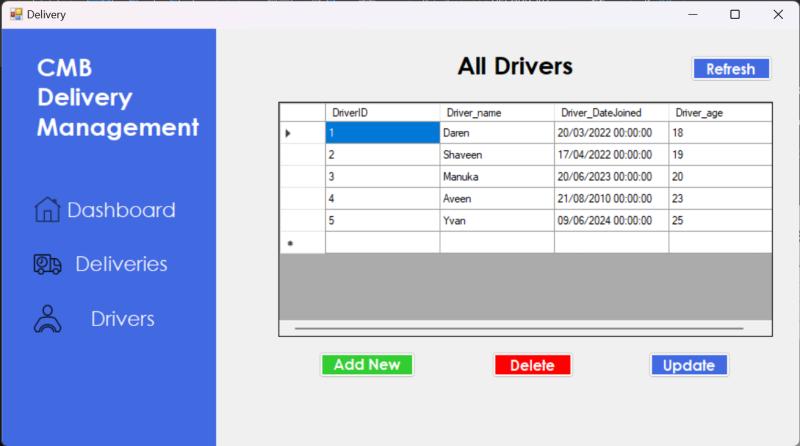
All drivers
This page shows the administrator a database preview of all the drivers enlisted in the business. Details such as DriverID, Driver_name, driver_dateJoined and driver_age are all shown.The “Add new” button redirects the user to a form to which new driver details are added and then listed onto the database.
Add Driver Form
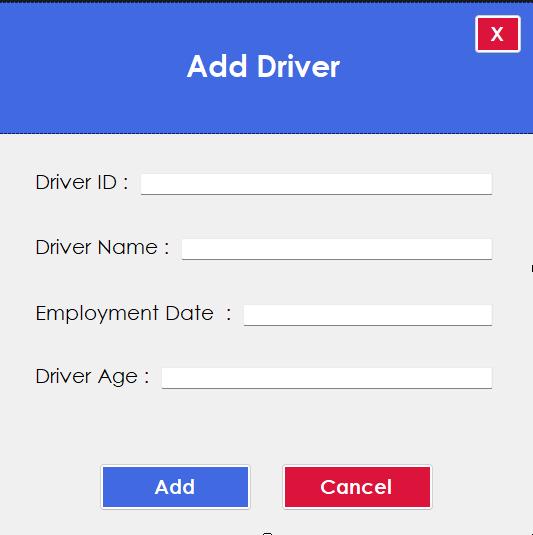
The add driver form allows the administrator to input driver details (ID, Name, Employment date and driver age).Once data is input into the form, the “Add” button can be used to include the new driver in the interface containing all drivers. Additionally, the “Cancel” button offers the option to clear the presently entered data.
Update Driver
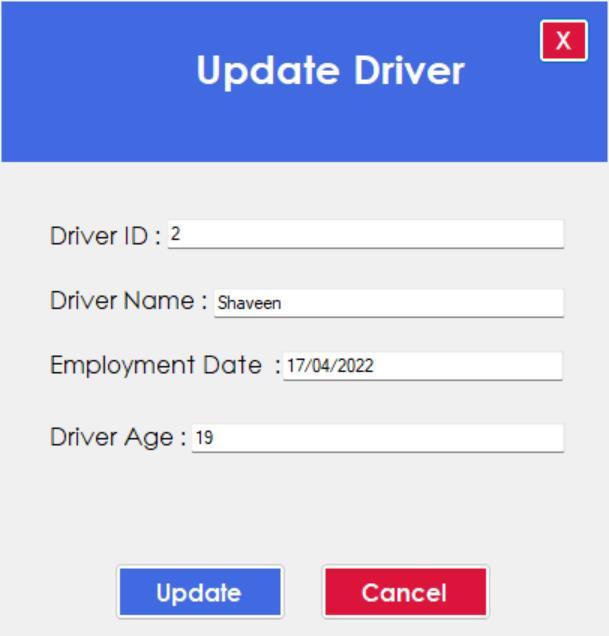
Once the update button is pressed on the “All Driver” panel the administrator will be redirected to this panel allowing the driver’s details to be updated.Once the “X” or “cancel” button is clicked this process can be halted or stopped.
Driver Login
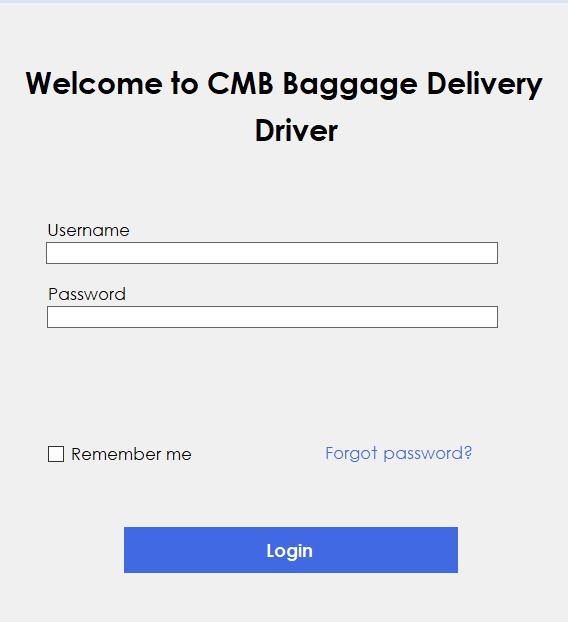
Similar to the Admin login, the driver’s login presents an interface for the drivers to enter their username and password, with a login button that allows them to proceed to the dashboard once the credentials are verified. When the “X” button is clicked the Splash Screen will load up.
Driver Delivery
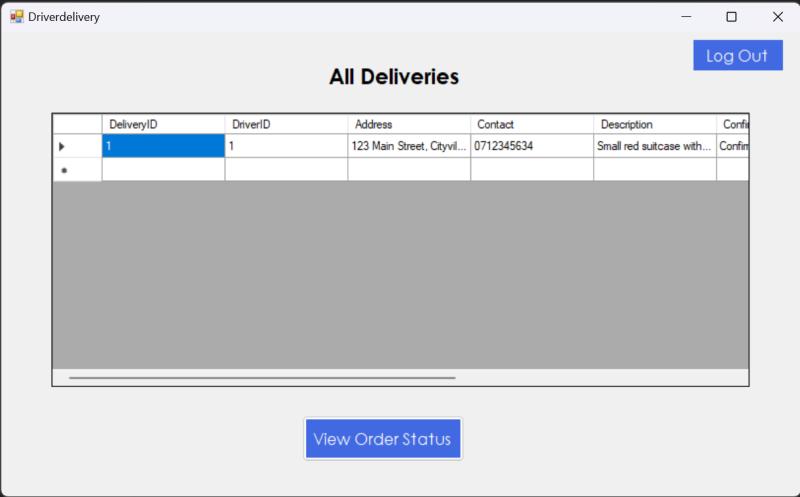
This interface shows all the ongoing deliveries and details for each individual driver. Details include DeliveryID, DriverID, Address, ContactNumber, Description and Order completion status. Drivers can access this page and click on individual deliveries followed by the view order status button which directs them to the Delivery Status interface.
Status of Delivery
Upon initiating a new delivery, the driver gains the ability to indicate various stages of progress. By utilizing designated buttons, the driver can confirm order receipt, baggage pickup, ongoing delivery status, and finally, successful baggage delivery. The driver won’t be able to go back after pressing a status option and they won’t be able skip any status options. The main reason is as you can see below, we have only enabled the required status button.